How to Enable a Frozen Cursor
Troubleshooting frozen or malfunctioned cursors might seem to be a hell of work to do, and as frustrating as it is when your cursor suddenly freezes in the middle of a task, many of the causes can be resolved with the information contained therein. It doesn’t take as much time as you thought it would.

Troubleshooting frozen or malfunctioned cursors might seem to be a hell of work to do, and as frustrating as it is when your cursor suddenly freezes in the middle of a task, many of the causes can be resolved with the information contained therein. It doesn’t take as much time as you thought it would.
How to Enable a Frozen Cursor
Just this afternoon, while working on an article, my cursor suddenly disappeared from my computer’s screen. Months back, if I experienced this, I would have panicked, but I didn’t because I knew exactly what to do.
Disappearing or frozen cursors are pretty much a common issue many computer users face, but many dread it because it often warrants them to reboot their PC to resolve the issue. Wait a minute, rebooting your PC doesn’t solve the issue all the time. Sometimes, they are more stubborn to get rid of, and that’s why you need to know how I resolve it.
But before then, let’s know some details.
What Causes It?
The most common culprit as you might have guessed is clashes within your system. A simple reboot often resolves this, sometimes, like I wrote above, it may not work.
Another reason is driver issues. This should be on your suspicion list if the event keeps recurring. For this, after you’ve unfrozen it, you should update your drivers.
Another reason why this might occur is when you overload your PC with RAM intensive tasks. This can cause certain critical components in your PC to pause or crash. Just free up your RAM and don’t cross your threshold.
A last reason why your mouse or cursor might freeze or disappear is if you accidentally disable it. All you need to do is to go back and enable it. And that’s exactly what I am going to show you here.
You don’t need to restart your PC or lose your precious unsaved program because your crazy mouse chose to leave its job post.
Press down the Windows key on your keyboard. If the start menu shows, that indicates that it is truly a mouse issue and not a keypad stuff. Thank goodness, it isn’t that complex!
When the start menu comes up, type in ‘mouse’ into the search field.
Now, since your cursor has gone to wonderland for a brief vacation, it becomes tricky to navigate. Fortunately for you, the keyboard is working, so you should use the Tabs key to move up and down, use the Enter key to of course select and enter while you use the left and right Arrow keys to move sideways. Don’t worry, it is only for a short period of time.
After typing ‘mouse’ into the input field, click on enter and this settings page will be shown to you.
Note, that at this stage, you are to use the Tabs key to navigate, hence, the text where the arrow is pointing is surrounded by a block highlighter.
Once you get to ‘additional mouse options’, use the Enter key and the pop-up page below will be displayed:
By default, when you use the tabs key, it should start at the buttons tab which is indicated by the blue arrow. Your aim is to head to the ELAN tab indicated by the red arrow. When your tabs key rests its block highlighter on the Button tab, use the right arrow to move the block highlighter to the right until it rests on the ELAN tab.
Once it rests on the ELAN tab, the ELAN settings sub-page will be displayed automatically.
DO NOT TOUCH ANYTHING ON THE KEYBOARD RIGHT NOW, EXCEPT THE TABS KEY.
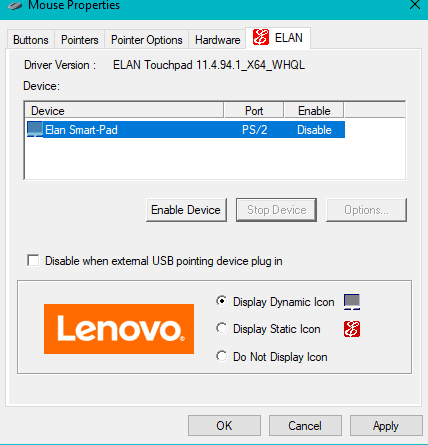
Here, you can see that the ‘stop device’ tab is inactive while the ‘enable device’ button is active. This is because the cursor is currently disabled (the reason why it froze or disappeared)
Using the tabs key, on ‘enable device’ and you will see that the ‘Stop device’ button will turn inactive while the ‘enable device’ button will turn active indicating that your mouse/ cursor is now active or should be working fine.
Next, you should click on ‘Apply’, then ‘OK’
Clicking on ‘OK’ before ‘Apply’ will cause the mouse to freeze again or disappear the moment you leave the pop-up page.
Once that’s done, your mouse is good to go.
When it Fails, What Else to Do?
Like I told you earlier, a lot of factors can cause your cursor to experience a glitch. If this does not work, run the windows troubleshooter to detect if there’s an issue you don’t know.
You can try the web option for solutions from the internet. The blue arrow points to where your tabs key should rest its block highlighter.
You may try rebooting your PC. If that also doesn’t work, try an external mouse to see, or use another mouse if you are already using an external mouse.
If all else fails, take the PC to a reputable technician.
Ending Notes
Mouse issues can be problematic and pause your productivity especially if you use a PC that doesn’t have a touch screen, but you shouldn’t stay unproductive for long.
With this guide, I hope you find a solution or a path to it.